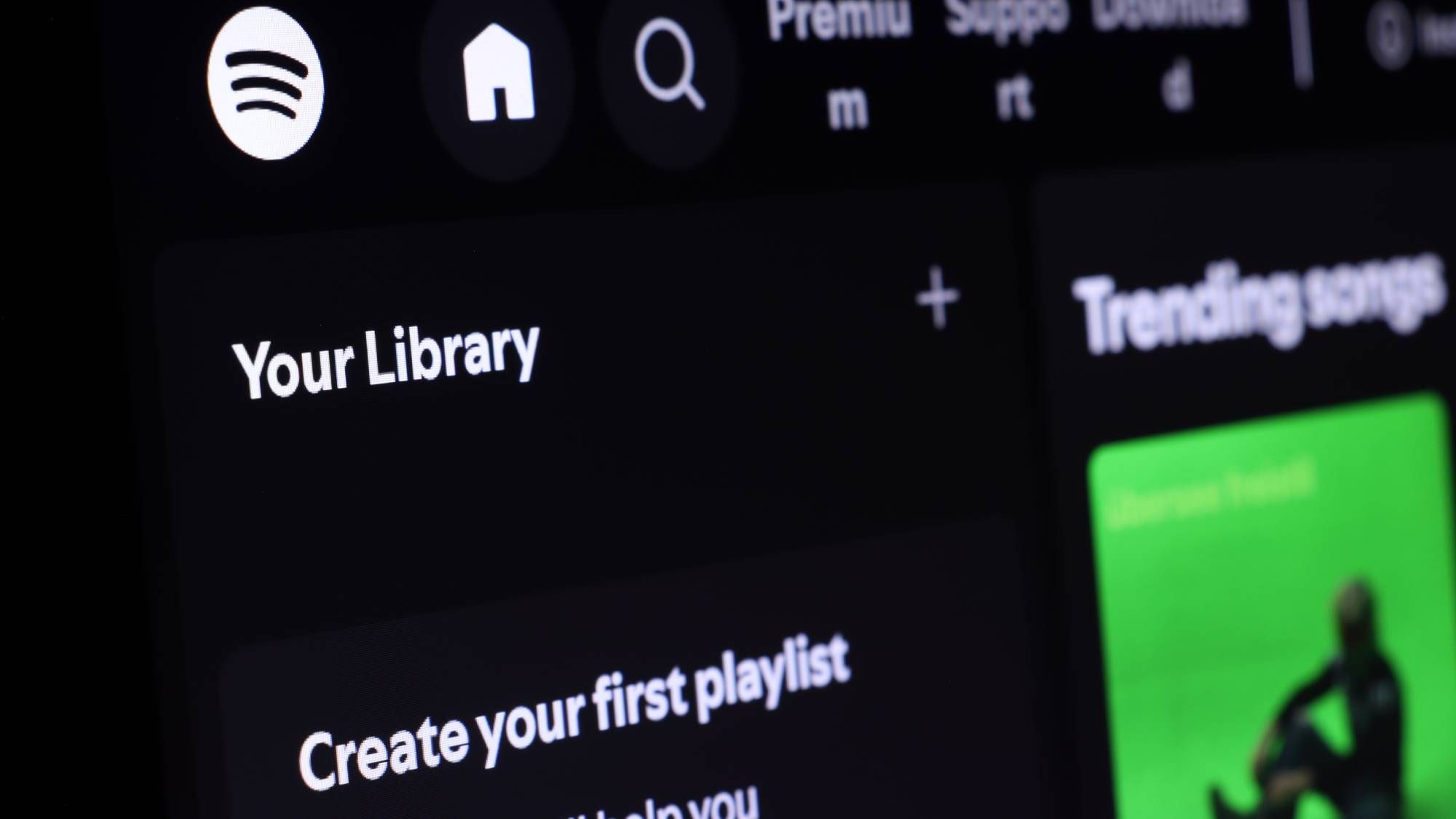
- Spotify has implemented exclusive mode in its Windows desktop application
- When enabled, it gives Spotify control over your PC's audio processing.
- It allows you to listen to music as it was mastered, but there are some caveats.
After what seems like a lifetime for audiophiles, Spotify has finally rolled out its long-requested Exclusive Mode feature to the Windows desktop app, meaning you can now take full advantage of seamless audio playback, with support for macOS coming in the future.
Available to Premium subscribers, Exclusive Mode can now be enabled in Spotify's audio output settings on desktop. In short, it gives Spotify full control over your computer's audio processing, so you can listen to your favorite songs and albums exactly as they were mastered.
Three months after users discovered it in beta, a Spotify representative announced the arrival of Exclusive Mode on the platform's community site, offering more details on how it works its magic. “Without exclusive mode enabled, your computer can alter the audio before it reaches your DAC by resampling it, mixing other system sounds, and changing the volume,” the post reads.
Article continues below.
But when exclusive mode is activated, the ante is upped on the audio output, which the publication describes as “ideal for listeners with a DAC or audio interface who want the purest sound possible without resampling or interference from their computer's audio mixer.”
With this in mind, there are some compromises you will have to be willing to make.
For starters, two of Spotify's key features will be disabled while Exclusive Mode is on: Automix (Spotify's DJ-like transitions between songs) and Crossfade. Additionally, Exclusive mode is also not available when watching music videos and streaming podcasts, as well as with other visual features like preview clips and canvas clips. Instead, the audio can be played from your computer's default audio device.
Additionally, other applications on your PC will not be able to play audio through your device when Exclusive Mode is activated. You can skip this if you have multiple audio devices (i.e. wired/Bluetooth headphones, USB DAC, etc.), where you can play sound from other applications by changing your computer's default audio output to another device.
Spotify also recommends using exclusive mode with a DAC or audio interface if you want to make the most of the perfect sound. The streaming service also suggests disabling the Crossfade, Automix, Normalize Volume, and Equalizer features to hear the music as it was originally mastered.
Despite these compromises, I can see Exclusive Mode fitting very comfortably for Spotify fans who want to prioritize perfect audio. It's been a long time coming for users to use Spotify exclusively on desktop, and the positive reactions on Reddit speak for themselves, with some users now calling on Apple Music to improve its Windows app.
Enabling exclusive mode is simple; see below.
How to enable Exclusive Mode in Spotify for Windows
- Connect your external DAC or audio interface to your PC. If your computer has a headphone port or built-in speaker, this means it may already have a compatible built-in DAC.
- Launch the Spotify desktop app for Windows and go to Settings > Playback
- Go to Output and select your audio device from the drop-down menu; then you can activate Exclusive Mode
Follow TechRadar on Google News and add us as a preferred source to receive news, reviews and opinions from our experts in your feeds. Be sure to click the Follow button!
And of course, you can also follow TechRadar on YouTube and tiktok for news, reviews, unboxings in video form and receive regular updates from us on WhatsApp also